NOTE The Attendance By workplace page is only accessible to Admins and Leaders who have been granted the 'Workplace view permission' and 'Work info view permission. 'If access is needed, please configure the Permission setting first on the [Workplace > Settings] page.
The Attendance by workplace page lets you compare the number of Planned members against the Actual Punch-in count by workplace at a glance, and also check workplace locations on a Map.
Navigate to [Dashboard Menu > Attendance > Work status > By workplace] to view the Work status By workplace.
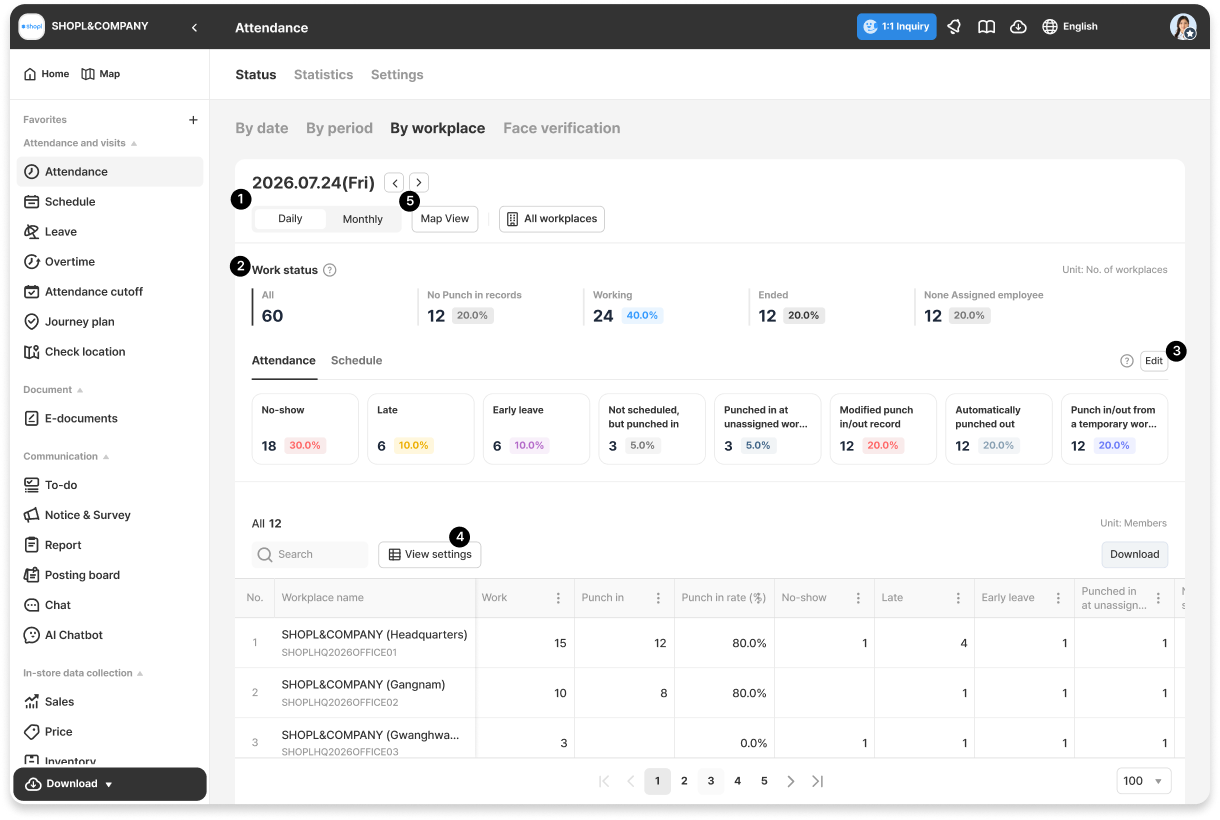
1. Understanding the Page Layout
1. Switching Between Daily and Monthly Views
You can switch between views at any time using the toggle button at the top of the screen.
Daily View (Default): Displays the Work status By workplace for the selected date.
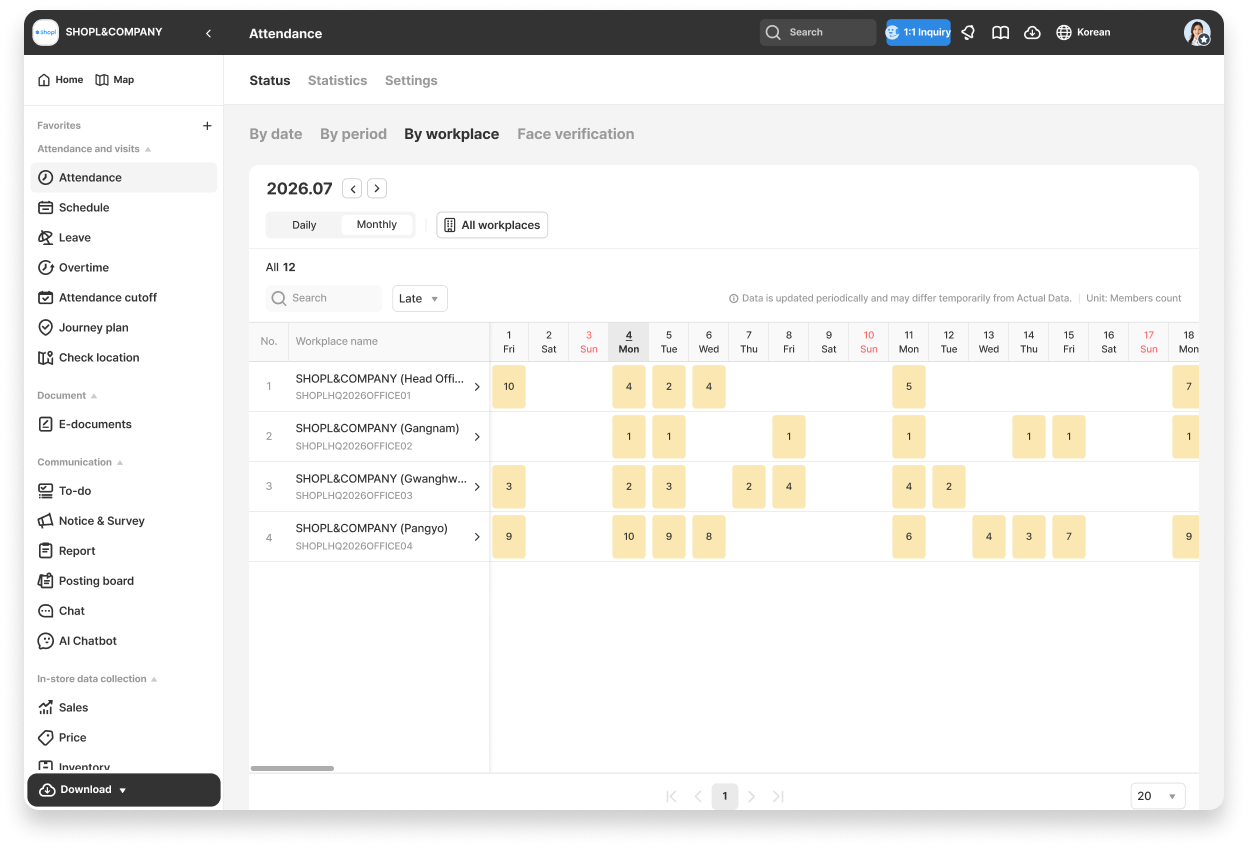
Monthly View: Displays the attendance and schedule status By workplace across an entire month, broken down By date.
2. Work Status Statistics
5 Summary cards are provided at the top, summarizing today's Work status.
💡 Clicking a card automatically filters the List below to show only the workplaces that match the selected criteria.
3. Configuring Statistics Fields for Attendance/Schedule
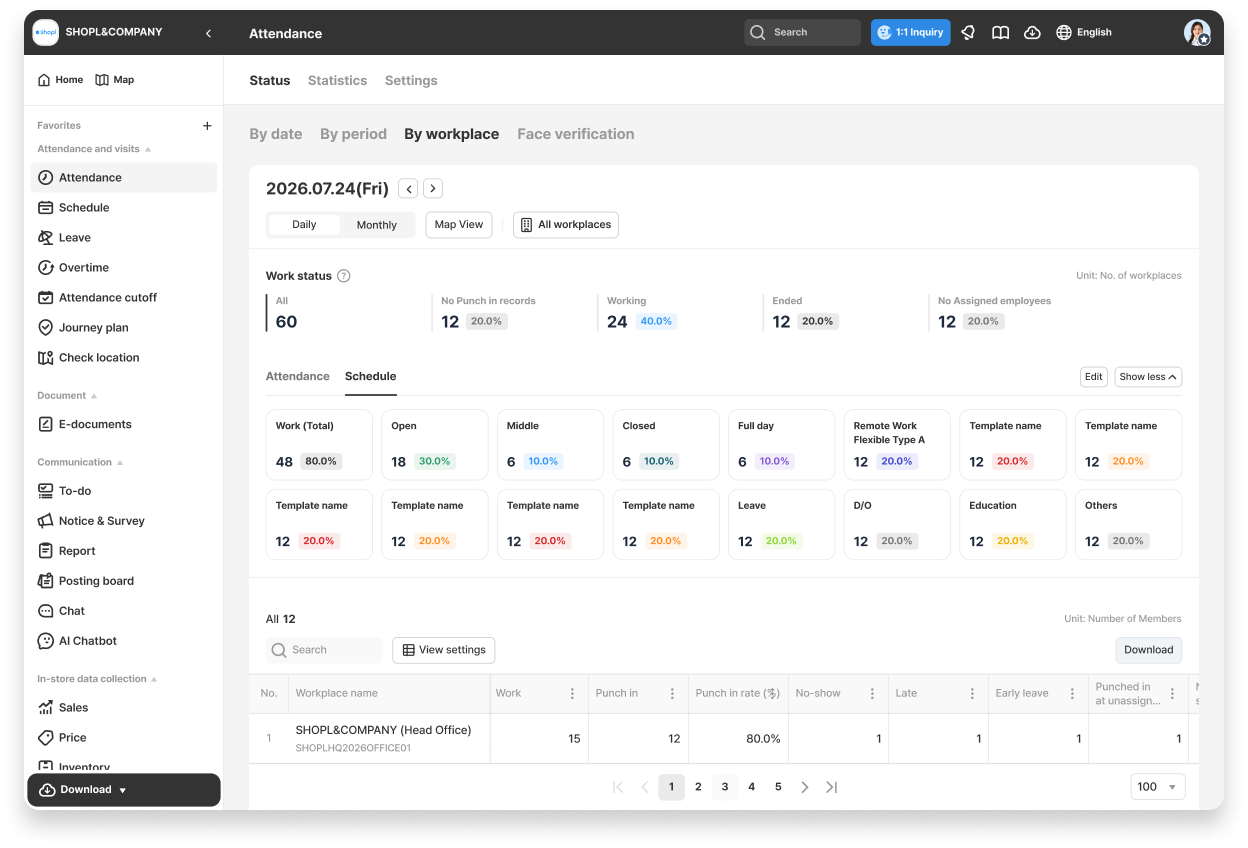
Switch between the [Attendance] tab and the [Schedule] tab to view detailed Statistics for each.
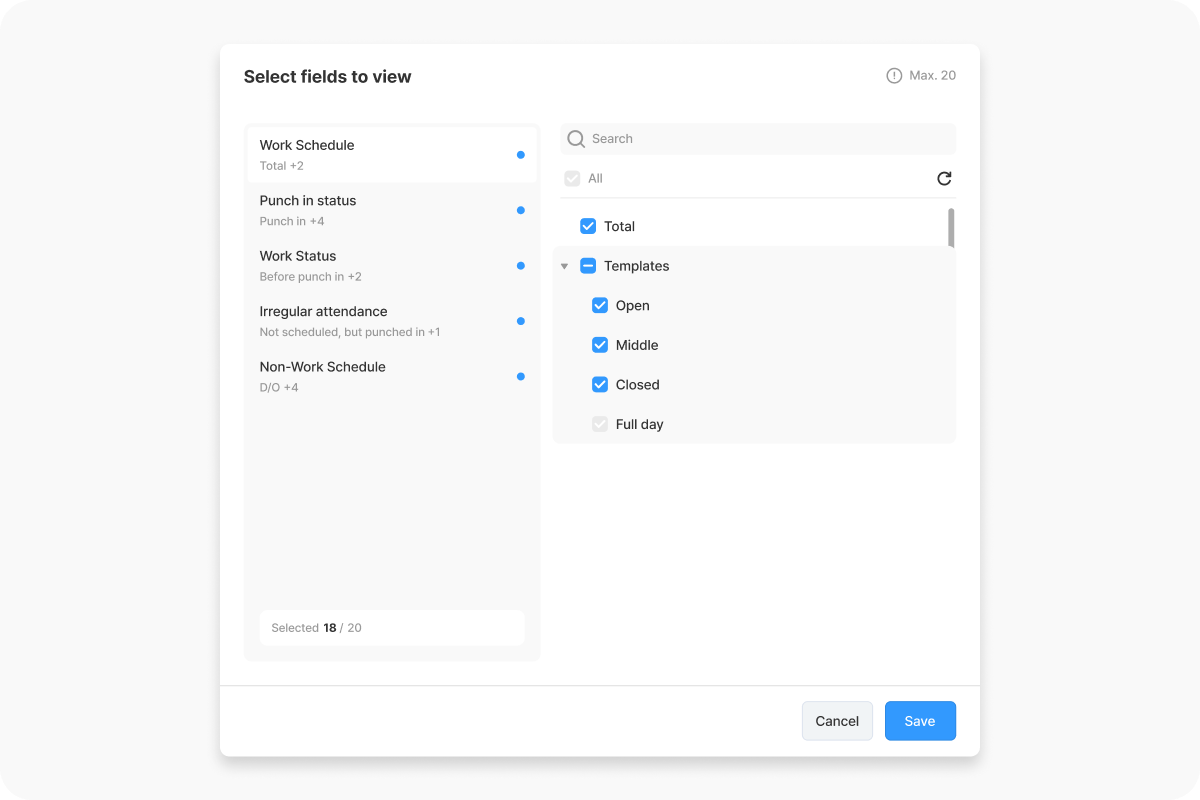
Click the [Edit] button to customize the Statistics items to those you check most frequently.
Clicking a Statistics item applies a filter to the List below Right away. (Note: Multiple selection of Statistics items is not available.)
4. Viewing Details By Workplace and Configuring Fields in the Bottom Table
You can Search by Workplace name or Workplace code.
You can customize or hide columns (fields) displayed in the table.
Clicking a Workplace name takes you to the detailed Work status page for that workplace.
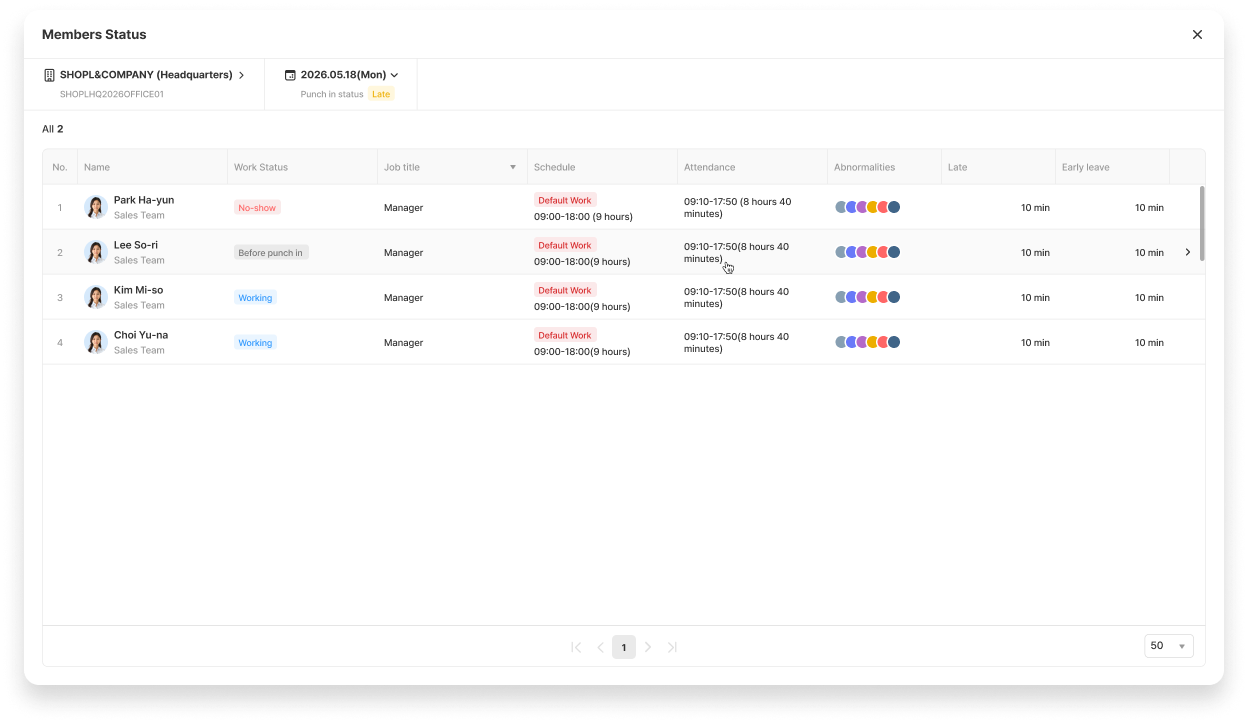
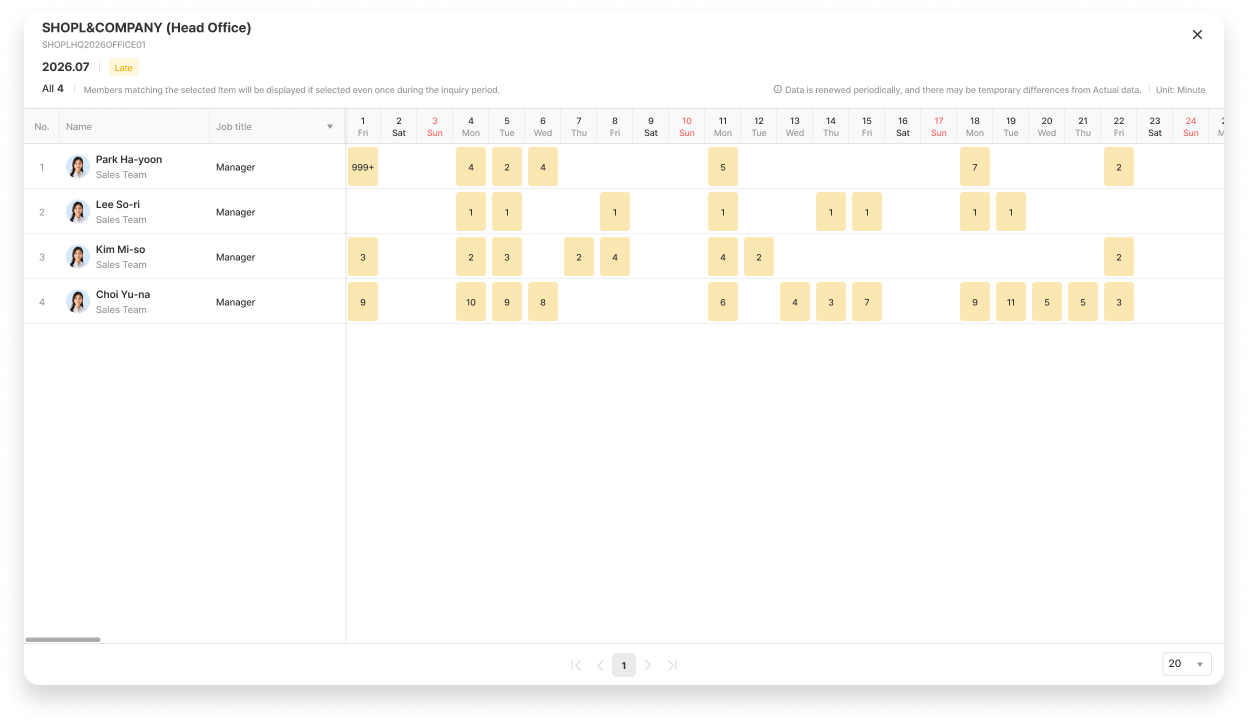
Clicking a data cell with a value immediately displays the List of Members who match the conditions for that date and workplace.
5. Map View
Click the [Map View] button in the Daily View to switch directly to the Map screen.
2. Viewing Data in Monthly Units
Switch the toggle at the top to [Monthly] to see which items occurred on which dates for each workplace over the selected month, in a matrix format.
Select the item you want to check (e.g., Punch in, Late, Leave, etc.) from the [Select fields to view] dropdown on the left, and the date cells where that item occurred will display a color indicator and headcount.
Clicking a date cell that displays a color immediately shows the List of Members and the Monthly status that match the conditions for that date, workplace, and item.
3. Viewing Everything at a Glance on the Map
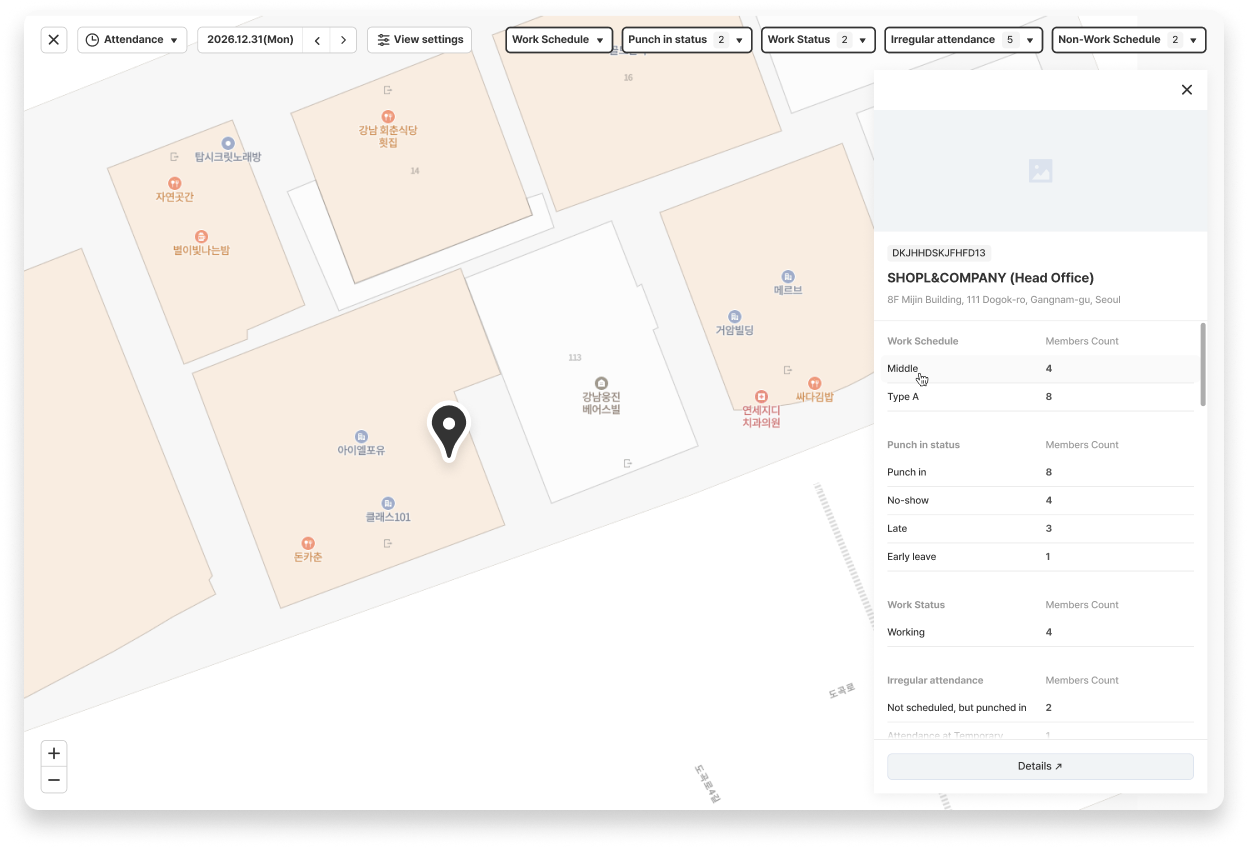
Click the [Map View] button in the Daily View (or [Map] in the main navigation) to see Workplace locations and today's Work status all at once on a Map.
Select the item you want to check from the [Select fields to view] at the top, and workplaces that meet the criteria versus those that do not will be distinguished by pins of different colors.
Nearby workplaces are grouped into clusters, and clicking a cluster either zooms in or expands the workplace list.
Clicking a workplace pin or a workplace in the list displays the headcount for that workplace's Work status in the side panel.
Clicking [Details] in the side panel opens the Daily View filtered for that workplace in a new window (the Map remains open as is).